

Enhancing your browsing experience has never been easier with Chrome extensions. These tiny tools add powerful features to Google Chrome, transforming a basic browser into a personalized productivity hub. Whether you’re a digital marketer, blogger, or everyday user, understanding what extensions are and how to install and manage them can unlock a new level of efficiency and customization.

What Are Chrome Extensions?
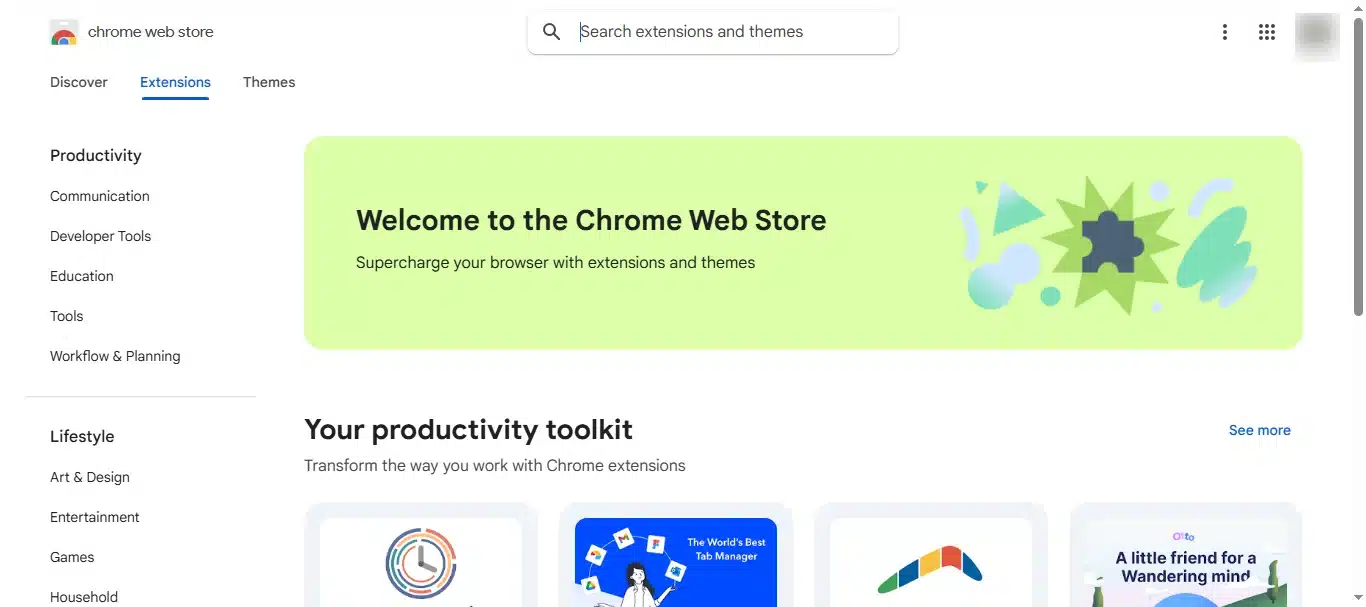
Chrome extensions are small software programs designed to modify and enhance the Google Chrome browser. Built using web technologies like HTML, CSS, and JavaScript, these extensions serve specific purposes—ranging from ad blocking to SEO analysis. They seamlessly integrate into the browser, providing additional features without the need for separate applications.
Extensions are essentially mini-apps that operate within Chrome, capable of modifying webpage content, observing browser events, and customizing the user interface. They are packaged in .crx files and are primarily distributed via the Chrome Web Store, making installation simple and secure.
How Do Chrome Extensions Work?
Extensions work by interacting with Chrome through APIs that allow them to access and modify browser behavior. Each extension contains a manifest file (manifest.json) declaring its permissions, files, and capabilities.
When installed, extensions can perform various actions such as:
- Injecting scripts into web pages
- Adding toolbar buttons and popups
- Observing browser events like tab creation or navigation
- Managing permissions dynamically
They may include background scripts running silently in the background to handle events or content scripts that interact directly with web page content, providing real-time personalization.
Applications and Use Cases for Chrome Extensions
Chrome extensions serve a broad spectrum of purposes suited for different users:
For Digital Marketers:
- SEO tools like SEO Site Tools or Ahrefs SEO Toolbar for analytics
- Keyword research and competitor analysis
- Managing social media posting timings
For General Users:
- Ad blockers such as uBlock Origin
- Password managers like LastPass
- Grammar checkers such as Grammarly
- Note-taking tools or sticky notes
- Split screen tools for better tab organization
These extensions streamline workflows, boost productivity, and improve web accessibility and security.
Best Chrome Extensions for Different Needs
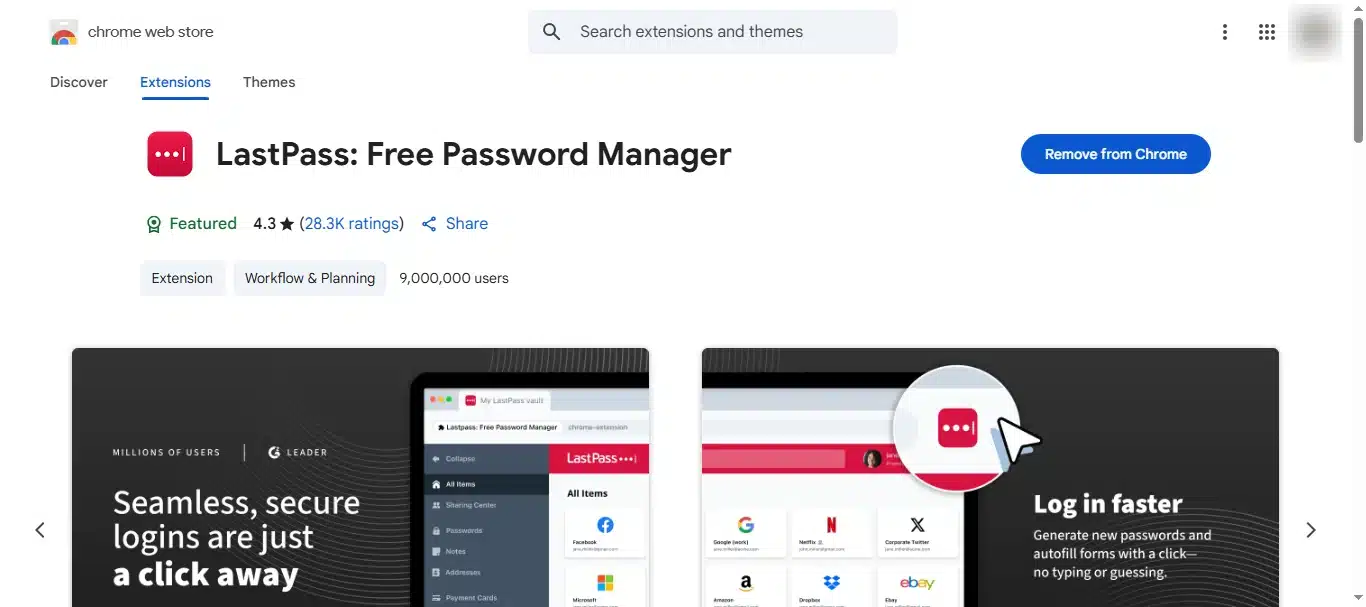
Here are some highly recommended extensions:
SEO Extensions:
- SEO Site Tools: In-depth SEO analytics
- Ahrefs SEO Toolbar: Crawlability and keyword analysis
- SEMRush Page Rank: Performance and traffic insights
Productivity Extensions:
- Split Screen: Manage tabs side-by-side
- Grammarly: Grammar and readability checks
- AdBlock: Remove unwanted ads
Each extension provides specific benefits tailored to professional and personal usage.
Related Read: 10 Best Chrome Extensions for SEO
How to Install Chrome Extensions
Method 1: From Chrome Web Store
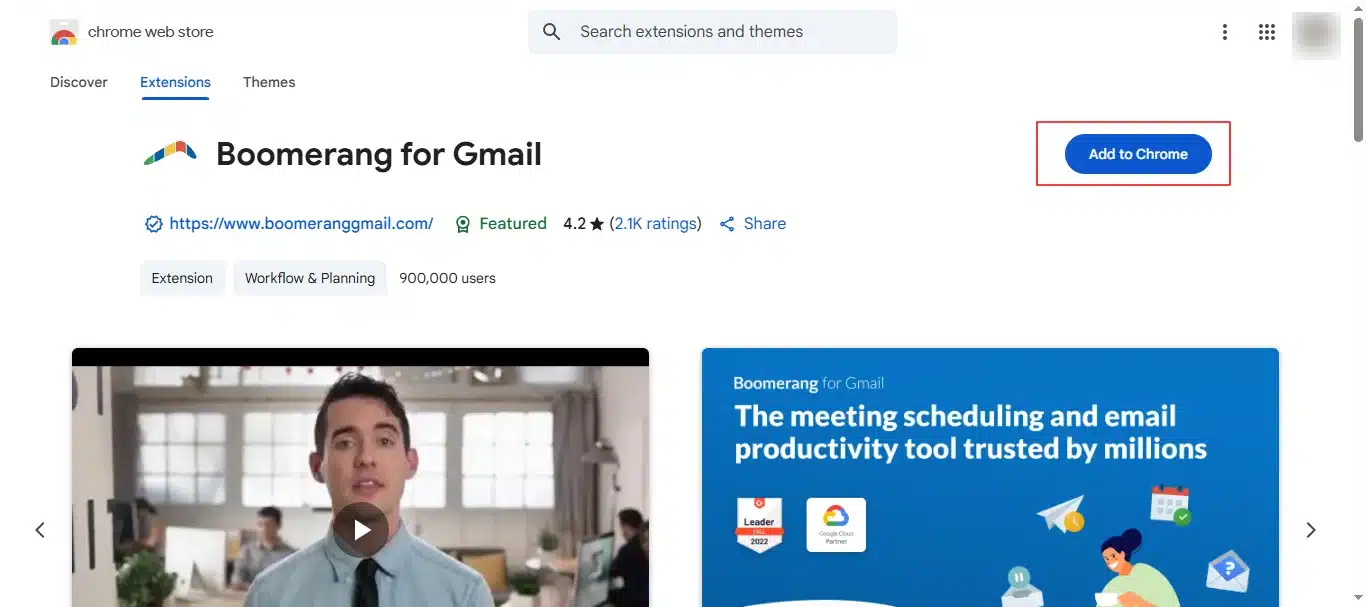
- Open the Chrome browser
- Visit the Chrome Web Store
- Search for your preferred extension
- Review its details, ratings, and permissions
- Click “Add to Chrome”
- Confirm by clicking “Add extension” when prompted
- Find the extension icon in the browser toolbar
Method 2: Manual Installation
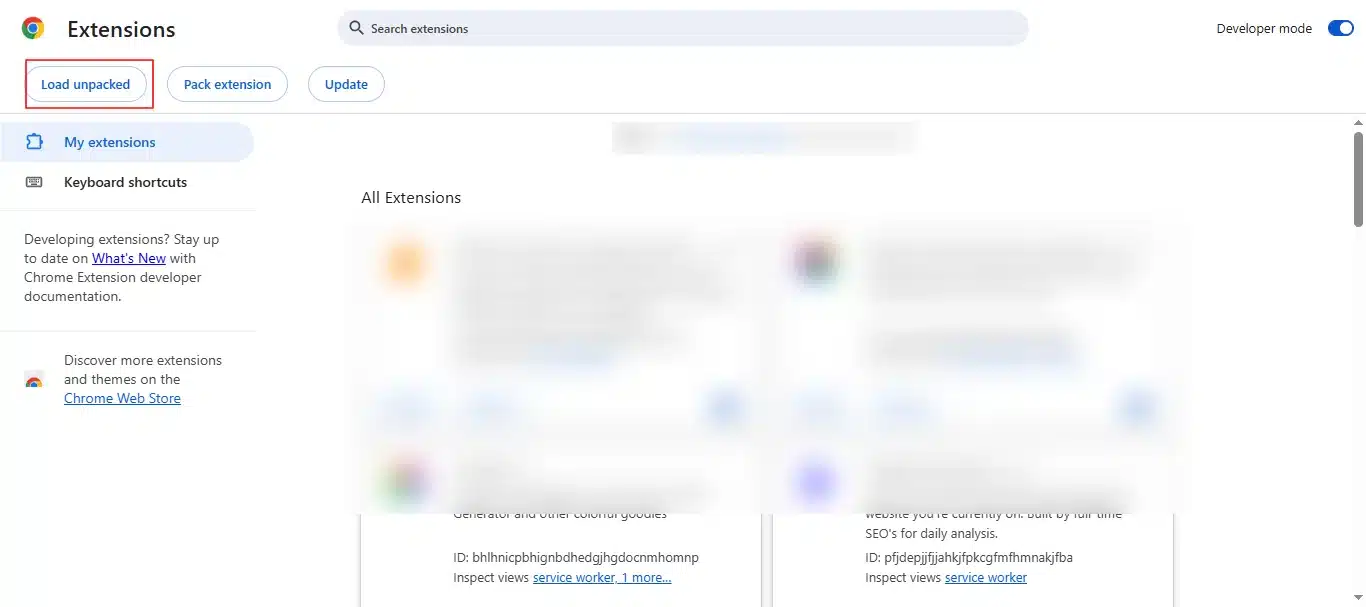
- Navigate to chrome://extensions/
- Enable Developer Mode
- If you have a .crx or unpacked extension folder, click “Load unpacked” or drag the extension files into Chrome
- Manage and update manually as needed
How to Manage Chrome Extensions
Enable or Disable Extensions
- Go to chrome://extensions/
- Toggle the switch to activate or deactivate extensions
- Remove unwanted extensions by clicking “Remove”
Best Practices for Management
- Regularly review installed extensions
- Remove unused or suspicious extensions
- Keep extensions updated
- Adjust permissions for privacy and security
- Organize extensions with folders for easy access
Security Tips
- Only install extensions from the Chrome Web Store
- Read reviews and ratings
- Limit permissions to only what’s necessary
- Remove extensions with high permission levels if not needed
Common Problems and Troubleshooting
- Extensions not functioning properly: disable, remove, or update
- Browser slowdown: remove unnecessary extensions
- Permission issues: revisit extension permissions and settings
- Unexpected behavior: check for conflicts between extensions
Conclusion
Chrome extensions are powerful tools that can customize and streamline your browsing experience. By understanding what they are, how to install, and manage them securely, you can maximize your browser’s potential. Explore the recommended extensions today and take full control of your digital workspace.
Frequently Asked Questions (FAQs)
1. What exactly is a Chrome extension?
A Chrome extension is a small software application designed to add new features or modify the functionality of the Google Chrome browser, enhancing your web experience without needing separate programs.
2. How do Chrome extensions work?
Extensions use web technologies like HTML, CSS, and JavaScript to interact with the browser. They can modify webpage content, add toolbars or buttons, and listen to browser events, all while running within Chrome’s environment.
3. Where can I find and install Chrome extensions?
The primary source for installing Chrome extensions is the Chrome Web Store, where you can browse, review, and safely add extensions to your browser with just a few clicks.
4. Can I install extensions outside the Chrome Web Store?
Yes, but this requires using developer mode to load unpacked extensions manually. However, it carries higher security risks, so it’s recommended only for developers or trusted extensions.
5. How do I manage installed Chrome extensions?
Manage your extensions by visiting chrome://extensions/ where you can enable, disable, remove, or adjust permissions for each extension individually.
6. Are Chrome extensions safe to use?
Most extensions from the Chrome Web Store are safe if you review their ratings, permissions, and developer reputation carefully. Avoid installing extensions from unknown sources to reduce security risks.
7. Why is my browser slow after installing multiple extensions?
Extensions consume system resources, so having many active extensions can slow down your browser. Disabling or removing unused extensions can improve performance.
8. Can I use Chrome extensions on my mobile device?
Full support for Chrome extensions on mobile devices is limited. Some third-party browsers like Kiwi and Yandex on Android support select extensions, but iOS does not officially support them.

Passionate about blogging and focused on elevating brand visibility through strategic SEO and digital marketing. Always tuned in to the latest trends, I’m dedicated to maximizing engagement and delivering measurable ROI in the dynamic world of digital marketing. Let’s connect and unlock new opportunities together!