



A web cache viewer lets you open previously saved versions of web pages when the live page is changed, removed, or temporarily unavailable. These cached snapshots come from search engines, browsers, CDNs, or archival services and are essential for recovery, research, and SEO validation.

What Is a Web Cache Viewer?
A web cache viewer is a tool that allows you to view cached versions of web pages. These cached pages are snapshots taken and stored by search engines, browsers, or archival services. Using a web cache viewer, you can access an older version of a website page, even if the live page is down, removed, or changed.
How Does Web Caching Work?
Web caching works by temporarily storing copies of website data like images, scripts, and text. Browsers and search engines cache pages to speed up loading times and reduce server load. This stored version is accessible later and can serve as a snapshot in time.
Why Are Cached Pages Important?
Viewing cached pages helps you:
- Retrieve content when a webpage is unavailable
- Analyze how search engines see your content for SEO purposes
- Track website or competitor changes over time
- Troubleshoot website issues like indexing or content removal
Common Scenarios When You Need to View Cached Pages
- When a webpage is down or removed temporarily
- To access deleted or updated content
- For SEO and competitor analysis
- To verify search engine indexing
- To bypass paywalls or geo-blocks in some cases
- To recover lost content after hacks or website errors
Understanding Different Types of Web Caching
- Search Engine Cache: Google, Bing, and other engines store cached copies of crawled web pages.
- Browser Cache: Your browser caches page elements locally to improve speed.
- Third-Party Archive Services: Tools like the Wayback Machine archive older snapshots.
- CDN and Proxy Cache: Content delivery networks cache content to optimize delivery speed globally.
How to Use a Web Cache Viewer: Step-by-Step Methods
Method 1: View Cached Pages Using Google Search Results
- Search for the webpage on Google.
- Click the three-dot menu or down arrow next to the URL.
- Select the “Cached” option to view the saved version.
Note: As of 2024, Google retired some cache features, so this method may be limited.
Method 2: Use the Browser Address Bar (Cache Operator)
- Copy the exact URL of the page you want.
- In your browser’s address bar, type cache: before the URL (e.g., cache:example.com).
- Press Enter to view the cached version.
Method 3: Access the Wayback Machine for Historical Snapshots
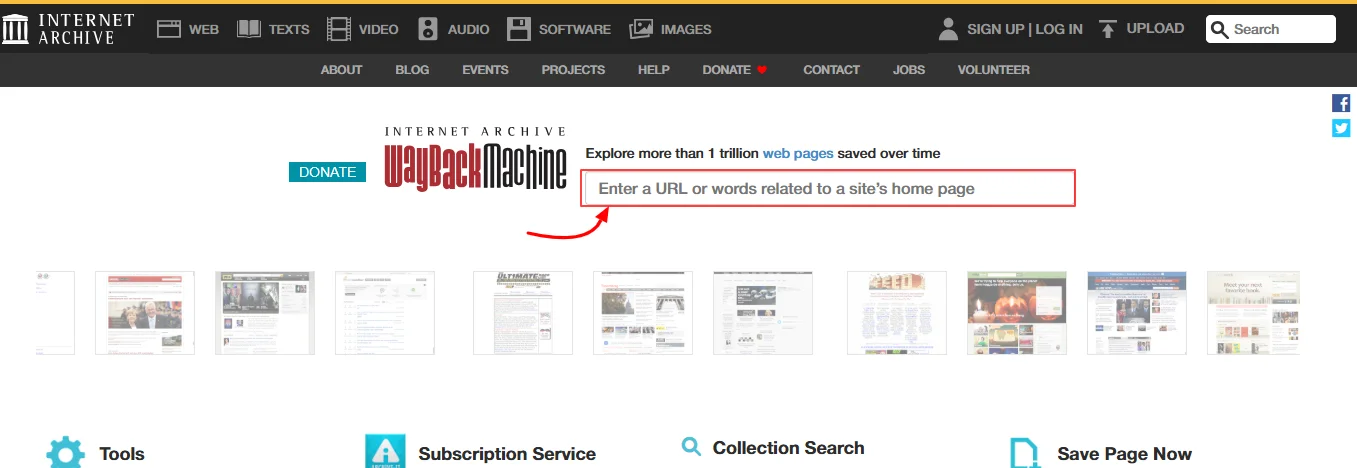
- Go to archive.org.
- Enter the page URL in the search box.
- Select from multiple archived snapshots by date.
- Browse the historical version of the page.
Method 4: Use Bing Cache for Recent Cached Versions
- Search the webpage on Bing.
- Click the down arrow next to the URL.
- Choose “Cached” to view the stored snapshot.
Method 5: Install a Chrome Extension (Web Cache Viewer)
- Install the Web Cache Viewer extension from the Chrome Web Store.
- Right-click on any link or page.
- Select “View Cached Version” to access Google or Wayback Machine versions quickly.
Method 6: Use CachedView and Other Online Tools
- Visit CachedView.com or a similar service (note: CachedView has had intermittent uptime and SSL certificate issues recently, so test it before relying on it for time-sensitive work).
- Enter the URL you want to check.
- Pick a cache source: keep in mind that since Google and Bing no longer serve caches directly, most of these tools now redirect primarily to the Wayback Machine.
- View the cached page if available.
Best Web Cache Viewer Tools Comparison
| Tool | Features | Best For |
| Wayback Machine | Extensive archive history, multiple snapshots | Historical page versions |
| Bing Webmaster Tools (URL Inspection) | Shows how Bing last crawled a page (no live cache view) | Site owners checking crawl status, not general cache viewing |
| CachedView | Multi-source cache viewing | Simple cache lookup |
| Web Cache Viewer Extension | Quick access via browser right-click | Regular users, site admins |
| Archive.today | Snapshot archiving, page captures | Long-term archival and snapshots |
Benefits of Using a Web Cache Viewer for SEO
- Verify how search engines index your webpages
- Detect content changes and SEO issues over time
- Monitor competitor website updates
- Check if pages are correctly cached and indexed
- Improve page speed by leveraging caching strategies
Troubleshooting Common Web Cache Viewer Issues
- Page not cached: Check crawl settings and robots.txt
- Cached page outdated or different: Cache refresh delays
- How to force Google to recache your website using Search Console
- Use of “noarchive” meta tags to prevent caching
- Clearing or removing caches from CDN or server side
The End of Google Cache: What Changed in 2024?
- Bing followed in December 2024, removing its own cache link and operator — meaning both major search engines have now fully exited the cache-viewing business.
- As of 2026, the Wayback Machine is effectively the only consistently reliable source for viewing historical page snapshots; third-party tools like CachedView largely function as front-ends to it rather than independent cache sources.
Is Google Cache Coming Back? What to Expect Going Forward
No. Both Google and Bing have treated their cache removals as permanent, not experimental. Danny Sullivan, Google’s Search Liaison, confirmed the decision was final, noting that cached pages had become less useful as site reliability improved and few users relied on the feature anymore. Microsoft echoed similar reasoning when Bing dropped its cache link in December 2024.
For practical purposes, this means:
- Don’t build workflows around browser cache operators like cache: — they return normal search results now, not snapshots.
- Treat the Wayback Machine as your primary tool, not a backup option.
- If you need proactive protection (saving your own pages before they change or disappear), consider a dedicated archiving service rather than relying on search engines to do it for you.
- For SEO diagnostics specifically, Google Search Console’s URL Inspection tool and Bing Webmaster Tools now do the job that cache viewing used to — checking how a page was last crawled, not how it currently renders from cache.
Advanced Tips for Web Cache Viewing
- Use Chrome DevTools to inspect HTTP cache headers
- Check cache expiration and reload timings
- Utilize Google Search Console URL Inspection for cache status
- Implement proper browser-side caching to increase performance
Conclusion
Web cache viewers are invaluable tools for accessing historical or unavailable web content. Whether you’re troubleshooting, researching, or optimizing for SEO, using these tools can save time and offer insights. With several methods available—from Google and Bing caches to the powerful Wayback Machine and extensions—you can easily view cached pages to meet your needs. Embrace web cache viewing as part of your digital toolkit to enhance your online research and website management.
Frequently Asked Questions (FAQs)
Q: What’s the difference between browser cache and search engine cache?
A: Browser cache stores page data locally on your device so pages you’ve visited before load faster. Search engine cache used to store a snapshot of a page on the search engine’s own servers, separate from your device, for indexing and archival purposes. As of 2026, neither Google nor Bing offers a public way to view that server-side cache anymore, so archive tools like the Wayback Machine have taken over this role.
Q: Can I still view Google cached pages in 2026?
A: No, not through Google itself. Google fully retired the “Cached” link and the cache: search operator in September 2024, and the feature has not returned. Typing cache: before a URL in Google Search now just returns a normal result, not a saved snapshot. Your best alternative is the Wayback Machine.
Q: Does Bing still have a cache feature?
A: No. Bing removed its cache link and cache operator in December 2024, shortly after Google did the same. Microsoft cited improved site reliability and pages not being optimized for cache viewing as the reasons. Site owners can still check how Bing crawled a page through Bing Webmaster Tools, but there’s no public cache view anymore.
Q: If Google and Bing don’t offer caching anymore, what should I use instead?
A: The Wayback Machine at archive.org is currently the most reliable option for viewing historical page snapshots. Browser extensions and tools like CachedView can help too, but most of them now pull from the Wayback Machine rather than an independent source, since the two major search engines are out of the caching business.
Q: Can I view cached pages on my mobile device?
A: Yes. The Wayback Machine, Archive.today, and most cache-related browser extensions work on mobile browsers, either through the mobile site or a dedicated app. Just keep in mind that browser-based tricks like address bar operators won’t work the same way on mobile as they might on desktop.
Q: How often are pages archived on the Wayback Machine?
A: It varies widely by site. Popular or high-traffic sites often get archived multiple times a week or even daily, while smaller or less-visited sites might only get a handful of snapshots a year. You can check the archive frequency for any URL directly on archive.org before relying on it for recent changes.
Q: Is it legal to view cached or archived pages?
A: Generally, yes. Cached and archived copies are stored by recognized services like the Wayback Machine, browsers, and search engines as part of normal web infrastructure. That said, using cached content to bypass a paywall or republish someone else’s material without permission can raise copyright or terms-of-service concerns, so use good judgment.
Q: How can I check when a page was last archived?
A: On the Wayback Machine, search for the URL and you’ll see a calendar view showing every date a snapshot was captured, with darker highlights on days with more activity. Most other cache tools display a timestamp near the top of the cached page itself.
Q: Why can’t I find a cached version of a page I’m looking for?
A: A few common reasons: the page may have a noarchive or noindex meta tag blocking archival, the site might be new enough that it hasn’t been crawled yet, or the URL might have changed slightly (extra parameters, trailing slashes, http vs. https). Try searching a few URL variations on the Wayback Machine before assuming no snapshot exists.
Q: Can I proactively save a page before it changes or gets taken down?
A: Yes. Instead of waiting for a page to disappear and hoping someone else archived it, you can manually submit a URL to the Wayback Machine’s “Save Page Now” tool, or use a service like Archive.today to capture an on-demand snapshot instantly. This is worth doing for any page you might need to reference later, like a competitor’s pricing page or a client’s live campaign landing page.
Q: How is Google Search Console’s URL Inspection tool different from a cache viewer?
A: URL Inspection doesn’t show you a visual snapshot of a page. Instead, it tells you how Googlebot last crawled the page, including indexing status, mobile usability, and structured data errors. It’s more useful for diagnosing SEO issues than for actually viewing what a page looked like, so think of it as a crawl-status tool rather than a cache replacement.
Q: Will Google or Bing bring back cache viewing in the future?
A: It’s unlikely. Both companies have described the removals as permanent decisions rather than temporary experiments, pointing to improved site reliability and low usage as the reasoning. For now and the foreseeable future, third-party archive tools are the standard way to view historical page versions.