


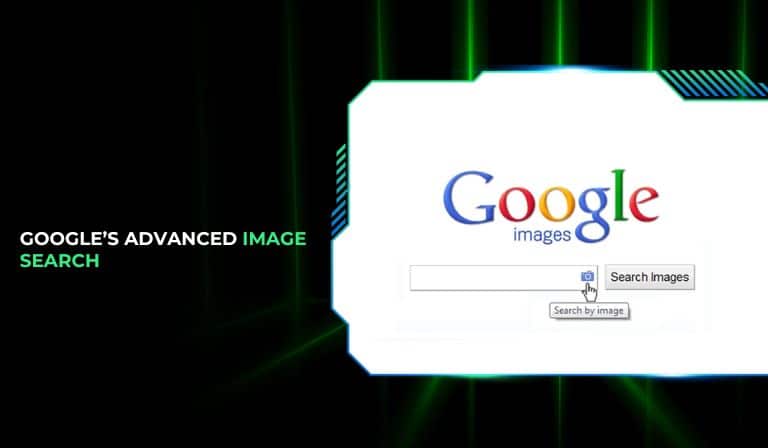
When we think about searching for images on Google, we often picture the standard search bar that provides us with a grid of images related to our query. While this is certainly helpful for most basic image searches, many people overlook Google’s Advanced Image Search features, which can make your image search more targeted, efficient, and tailored to your specific needs.

This guide will take you through the advanced capabilities of Google Image Search, including how to use filters, reverse image search, and other powerful tools to find exactly what you’re looking for in a fraction of the time.
Google Image Search is one of the most widely used tools for finding visual content on the web. It’s simple to use, fast, and effective for most people. But for those who want to refine their search even further, Google offers a suite of advanced image search features that many users underutilize.
By learning how to leverage these advanced features, you can dramatically improve the efficiency of your searches, pinpoint specific images, and even find images with particular attributes like size, color, usage rights, and more.
In this guide, we’ll explore the different tools available in Google’s Advanced Image Search, breaking them down to help you search smarter, not harder.
Basic Image Search on Google
Before diving into the advanced features, let’s first touch on the basics of Google’s image search.
How It Works
To start a basic image search, you simply go to images.google.com and enter a keyword or phrase into the search bar. Google will then return a grid of image results related to your query. The images are sorted by relevance, and you can click on any image to view it in full size or visit its original source.
While this works for general image searches, you may often find yourself needing a more specific image, such as one of a particular size, color, or style. This is where Advanced Image Search comes in.
Advanced Search Filters
By clicking the “Tools” button below the search bar on the Google Images page, you can access a range of advanced filters that allow you to refine your image search in several key ways. Here’s how each filter works:
1. Image Size:
Sometimes, you’re not just looking for any image—you need a specific size. Whether you’re looking for a large, high-resolution image for a blog post or a small image for a thumbnail, the Image Size filter can help you narrow down your options.
The available size options are:
- Large: Ideal for hero images or other large-scale visuals.
- Medium: Great for standard-sized images.
- Small: Best for icons, logos, or smaller visuals.
- Icon: Perfect for very tiny images (usually under 100px).
2. Image Color
If you’re writing a blog about beach vacations and want to find images with light blue water, the Image Color filter can help. You can narrow down results by color, choosing from:
- Black & White: Search for grayscale images.
- Transparent: Find images with transparent backgrounds, useful for logos or icons.
- Specific Colors: Pick any specific color like red, blue, green, yellow, etc., to find images with that exact tone.
This filter can save you time by eliminating irrelevant images and focusing your search on exactly what you need.
3. Image Usage Rights
One of the most important features for content creators and marketers is filtering images by usage rights. Not all images on the internet are free to use, and you should always respect copyright laws.
Google offers a few options here:
- Labeled for reuse with modification: These images can be reused and modified as long as you give appropriate credit.
- Labeled for reuse: These images can be reused without modification.
- Labeled for non-commercial reuse with modification: These images can be used and modified, but only for non-commercial purposes.
- Labeled for non-commercial reuse: These images can be used without modification for non-commercial purposes.
This filter makes it easier to find images that you have the legal right to use, saving you from potential legal issues.
4. Image Type
If you need a specific type of image, the Image Type filter allows you to narrow down your search to:
- Clip Art: Vector-style images typically used for illustrations.
- Line Drawing: Simple black-and-white images without color.
- GIF: Animated images, ideal for website elements or social media posts.
This filter can be especially helpful for graphic designers, marketers, or anyone who needs to find specific types of visual content.
5. Time
If you need images from a certain period, the Time filter can help you find more recent images. You can filter images by:
- Past 24 hours
- Past week
- Past month
- Past year
This feature is particularly useful for keeping up with current trends or finding the most recent images on a particular subject.
Google’s Advanced Image Search
If you still haven’t found the image you’re looking for using the basic filters, Google’s Advanced Image Search offers even more granular control over your search.
To access it, simply go to Google’s Advanced Image Search page. Here, you can use several additional filters to refine your results further.
1. Exact Word or Phrase:
In this section, you can input multiple keywords or even use quotes around a phrase to ensure that only images with the exact wording you’re after are returned. This is useful when searching for a specific image that includes a particular phrase or title.
2. Aspect Ratio:
If you need an image with a specific aspect ratio, such as a wide or tall image, the Aspect Ratio filter is perfect. You can filter for:
- Wide
- Tall
- Square
- Panoramic
This filter ensures that you get the right dimensions for your design, layout, or project.
3. Region:
Want to see images from a specific part of the world? The Region filter allows you to limit results to photos that are publicly available in a particular region or country. This is especially helpful when you’re searching for region-specific content or images tied to a specific geographic location.
4. Site or Domain:
If you’re looking for images from a particular website, you can use the Site or Domain filter to restrict your search to that specific website. This is useful when you want to find images from a specific source or domain.
For example, if you want to find all the images related to a specific product on a company’s website, this filter can help narrow it down.
5. SafeSearch
Google’s SafeSearch filter helps block explicit content from appearing in your search results. By enabling or disabling this filter, you can tailor your search experience, especially if you’re looking for family-friendly or workplace-appropriate images.
6. File Type
Sometimes you might need a specific file format for your image, like JPG, PNG, or SVG. The File Type filter lets you search for images in specific formats, which can be useful for design or development projects.
Reverse Image Search
One of the most powerful yet underused features in Google’s image search arsenal is Reverse Image Search. This allows you to search for images based on an existing image, rather than keywords.
How to Use Reverse Image Search
To use reverse image search, go to Google Images, click the camera icon in the search bar, and either paste an image URL or upload your own image. Google will then return similar or identical images from across the web.
Benefits of Reverse Image Search:
- Refine & Narrow Your Search: You can find visually similar images, ensuring that you’re looking at images that fit your exact criteria, such as colors, layout, or design elements.
- Pinpoint Image Sources: If you’ve saved an image but can’t remember where you found it, reverse image search can help you trace its original source. This is especially useful for finding product images or identifying artwork.
Reverse image search is incredibly useful for creative professionals, journalists, or anyone who needs to trace the origin of an image or find more images similar to the one they already have.
Integrating Advanced Image Search in Your Workflow
With billions of images being searched for daily, Google’s advanced search tools can save you a significant amount of time, especially if you’re after specific images or need particular image attributes. Rather than scrolling endlessly through irrelevant results, the advanced filters and reverse image search can quickly narrow your focus, making your search process far more efficient.
Whether you’re a marketer, designer, content creator, or simply someone who needs images for a project, mastering these advanced features will help you get better results faster.
FAQs
Can I search for images by color?
Yes! Google’s Image Color filter allows you to search for images based on a specific color or even transparent backgrounds. This can be useful for finding images that match a particular color scheme or design.
How do I search for images with specific usage rights?
In Google’s Advanced Image Search, you can filter images based on usage rights to find images that are labeled for reuse, with or without modification, or for non-commercial use. This is great for finding content you can legally use in your projects.
How can I perform a reverse image search on my mobile device?
To perform a reverse image search on your mobile device, go to Google Images, tap on the camera icon, and upload an image or paste an image URL. This feature works seamlessly across both Android and iOS devices.
How can I find an image with a specific aspect ratio?
Google’s Aspect Ratio filter in the Advanced Image Search lets you search for images that are wide, tall, square, or panoramic. This is perfect for those looking to meet specific design or layout needs.
Is there a way to find images from a specific website?
Yes, you can use the Site or Domain filter in Advanced Image Search to limit results to images hosted on a particular website or domain. This is especially helpful when you need to find images from a specific source.
Conclusion
Google’s advanced image search features are powerful tools that can save you time and improve the quality of your image searches. By using filters like size, color, usage rights, and more, you can refine your search results and find exactly what you need in a matter of seconds. Whether you’re conducting research, creating content, or simply looking for the perfect image, these tools offer the precision you need to streamline your process.

An avid blogger, dedicated to boosting brand presence, optimizing SEO, and delivering results in digital marketing. With a keen eye for trends, he’s committed to driving engagement and ROI in the ever-evolving digital landscape. Let’s connect and explore digital possibilities together.