
Before you start
Writing is a part of daily work for both designers and writers. Whether you’re drafting content, preparing scripts, or taking notes for your next design idea, using the right writing tool makes a big difference. In 2026, many free apps offer features that help you write faster, avoid mistakes, and stay organized.
This blog lists the top 8 free writing apps that help designers and writers work better and save time.
Stop 01 of 07
1 minWhy Writers and Designers Need Writing Apps
Writing apps help improve your content and make your workflow smoother. Here’s why they are useful:
- Catch grammar and spelling mistakes before sharing or publishing.
- Organize ideas clearly using notes, outlines, or folders.
- Stay focused with tools that reduce distractions.
- Collaborate easily with teammates or clients in real time.
These apps support creative work, making it easier to focus on your ideas and deliver clean, clear writing.
Stop 02 of 07
1 minCriteria for Choosing a Good Writing App
When choosing a writing app, check for these features:
- Easy-to-use interface so you can start writing without confusion.
- Works on multiple devices like phones, tablets, and desktops.
- Lets you write offline and online, depending on your needs.
- Checks grammar and style to make writing more clear and correct.
- Offers sharing and export options, especially for team projects.
Stop 03 of 07
6 minTop 8 Free Writing Apps for 2026
Here are the best free writing tools for designers and writers in 2026:
| App | Best For | Free Plan Limits |
|---|---|---|
| Google Docs | Real-time collaboration | None on core features |
| Grammarly | Grammar and tone checking | Limited AI prompts/month; rewrites and plagiarism check are paid-only |
| Notion | Organizing ideas and projects | File upload and history limits on team workspaces |
| Hemingway Editor | Clear, simple writing | None on web version |
| LibreOffice Writer | Offline document editing | None, fully free and open-source |
| Evernote | Research and web clipping | Syncs to a limited number of devices; monthly upload cap |
| FocusWriter | Distraction-free drafting | None, fully free |
| Joplin | Markdown notes with privacy | None, fully free and open-source |
1. Google Docs
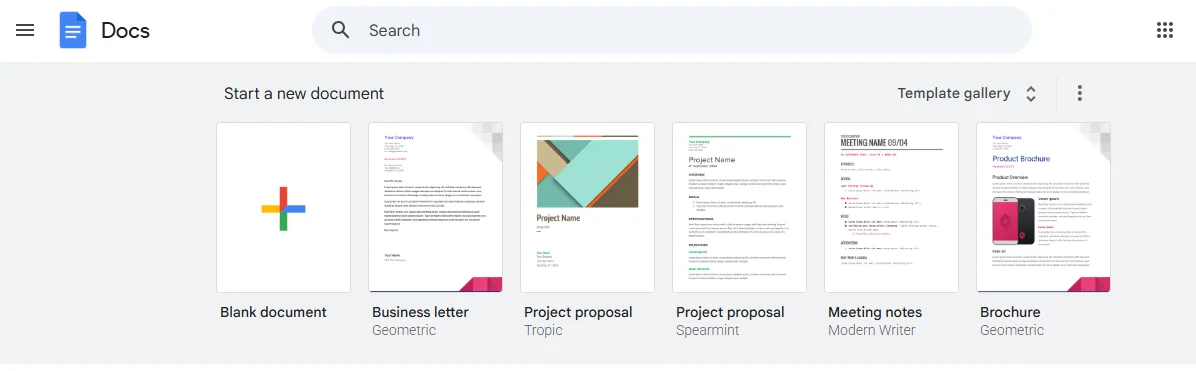
Google Docs is a free, cloud-based writing tool that runs entirely in your browser, and it’s probably the app on this list most people already have some familiarity with. What makes it useful for designers and writers specifically isn’t just that it’s free, it’s that collaboration actually works well. Multiple people can edit the same document at once, leave comments tied to specific lines, and suggest changes without overwriting each other’s work, which matters when a client or teammate needs to review a draft.
The entire free plan is genuinely full-featured. There’s no paywall for core writing, editing, or collaboration functionality, and Google’s now built Gemini directly into Docs for AI-assisted drafting and rewriting, though some of the more advanced Gemini features are tied to a paid Google Workspace or Google One AI plan rather than the free tier.
Key Features:
- Real-time collaboration
- Autosave with cloud backup
- Commenting and suggesting
- Version history
- Works on all devices
2. Grammarly
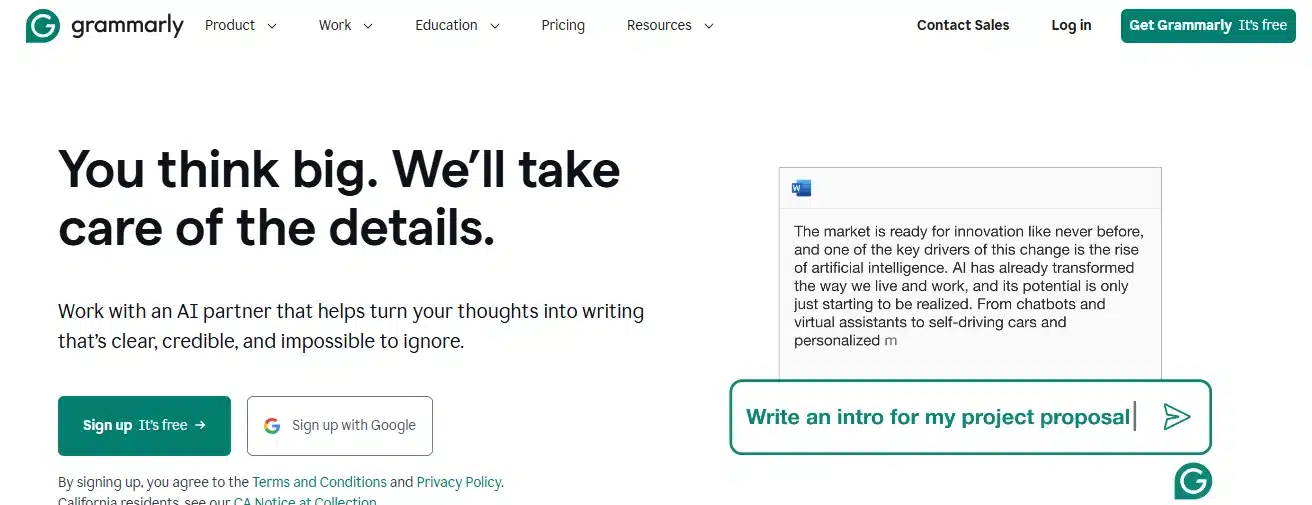
Grammarly catches grammar, spelling, and tone issues in real time, whether you’re writing in its own editor, a browser extension, or directly inside Gmail, Google Docs, or Slack. For a quick pass on emails, social captions, or a first draft, it’s still one of the fastest ways to clean up writing without opening a separate tool.
One thing worth knowing before you rely on the free plan: Grammarly (now under a parent company called Superhuman, though the writing product itself is still branded Grammarly) caps free users at a limited number of AI prompts per month, and full-sentence rewrites, tone adjustment, and plagiarism detection are locked behind the paid Pro plan. The free tier still covers solid grammar and spelling correction, but if you’re leaning on AI rewrites heavily, you’ll hit that ceiling fast.
Key Features:
- Real-time grammar and spelling checks
- Tone and clarity suggestions
- Works across browsers and editors
- Weekly writing reports
- Easy-to-understand corrections
3. Notion
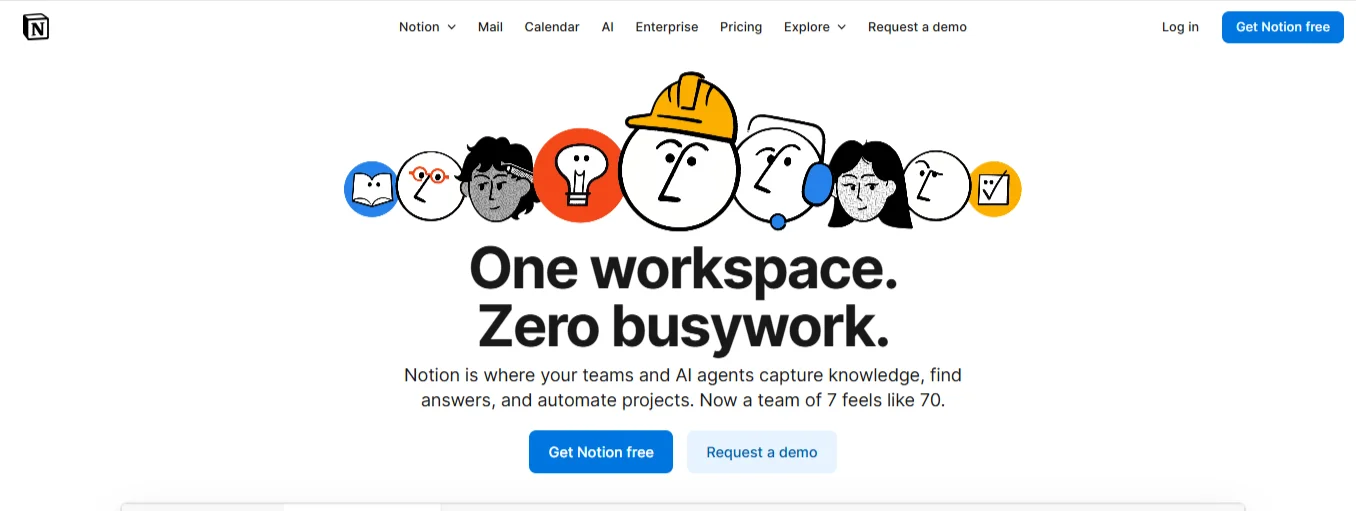
Notion works less like a traditional writing app and more like a flexible workspace where writing, planning, and organizing all live together. You can draft a blog post, build a content calendar, and track a project’s status without switching tools, which is why a lot of solo writers and small design teams end up using it as their default hub instead of juggling separate apps for notes and tasks.
The free plan covers individual use well, with unlimited pages and blocks. Where it gets tighter is on collaboration at scale: shared or team workspaces on the free tier have limits on file uploads and block history that don’t apply once you’re on a paid plan, so it’s worth checking those limits before building a team workflow entirely around Notion’s free tier.
Key Features:
- Notes, docs, and task tracking
- Custom templates
- Real-time collaboration
- Drag-and-drop blocks
- Cross-device syncing
4. Hemingway Editor
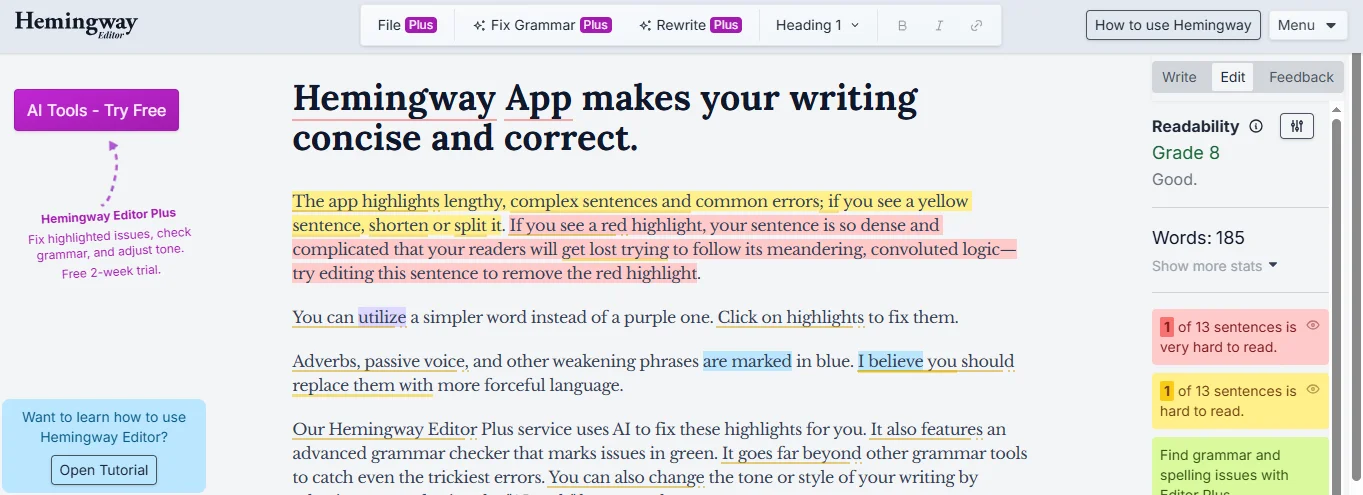
Hemingway Editor does one job well: it flags where your writing is harder to read than it needs to be. Paste in a paragraph and it highlights long, tangled sentences, passive voice, and unnecessarily complex words, then gives you a readability grade so you can see the effect of each edit as you make it. It won’t fix grammar the way Grammarly does, but for tightening up dense or wordy drafts before publishing, it’s still one of the fastest tools for the job. The web version is free with no account required, and the desktop app is a one-time purchase rather than a subscription if you want offline access.
Key Features:
- Highlights complex sentences
- Readability score
- Detects passive voice
- Clean writing mode
- Online and desktop versions
5. LibreOffice Writer
LibreOffice Writer is a free, open-source desktop word processor that works fully offline, which makes it a solid fallback for anyone who doesn’t want to depend on an internet connection or a cloud account to write. It handles heavy formatting well (styles, headers, footnotes, tables) and exports cleanly to PDF or DOCX, so files stay compatible with clients or teams still using Microsoft Word. Since it’s open-source, there’s no free-tier catch here at all, the entire feature set is free permanently, with no account, subscription, or upgrade prompts.
Key Features:
- Works offline
- Advanced formatting tools
- Supports DOCX, PDF, and more
- No signup required
- Free and open-source
6. Evernote
Evernote is built for capturing and organizing research, notes, and reference material rather than long-form writing itself. You can clip full web pages, tag and search across everything you’ve saved, and attach images, PDFs, or voice notes to any entry, which makes it useful during the research phase of a content or design project.
The free plan is worth going into with clear expectations, though. It limits you to syncing across a small number of devices (historically capped at two), and it caps total note storage each month. For a writer or designer who only needs notes on one laptop, that’s rarely a problem. For anyone who wants their notes synced across a phone, tablet, and desktop, the free tier will start to feel restrictive fairly quickly, and that’s a real limitation worth knowing about upfront rather than discovering later.
Key Features:
- Create and tag notes
- Web clipping tool
- Sync across all devices
- Add images and audio
- Organize with notebooks
7. FocusWriter
FocusWriter strips away everything but the page. It opens full-screen with no toolbars or menus in view, so there’s genuinely nothing on screen to pull your attention away from the sentence you’re writing. You can set daily word count or timer-based goals to build a writing habit, and it saves your work automatically as you go. It’s entirely free, works offline, and runs on Windows, Mac, and Linux, which makes it a solid pick for anyone who finds a cluttered interface genuinely distracting rather than just mildly annoying.
Key Features:
- Full-screen distraction-free mode
- Set writing goals and timers
- Auto-save feature
- Lightweight and fast
- Works on Windows, Mac, and Linux
8. Joplin
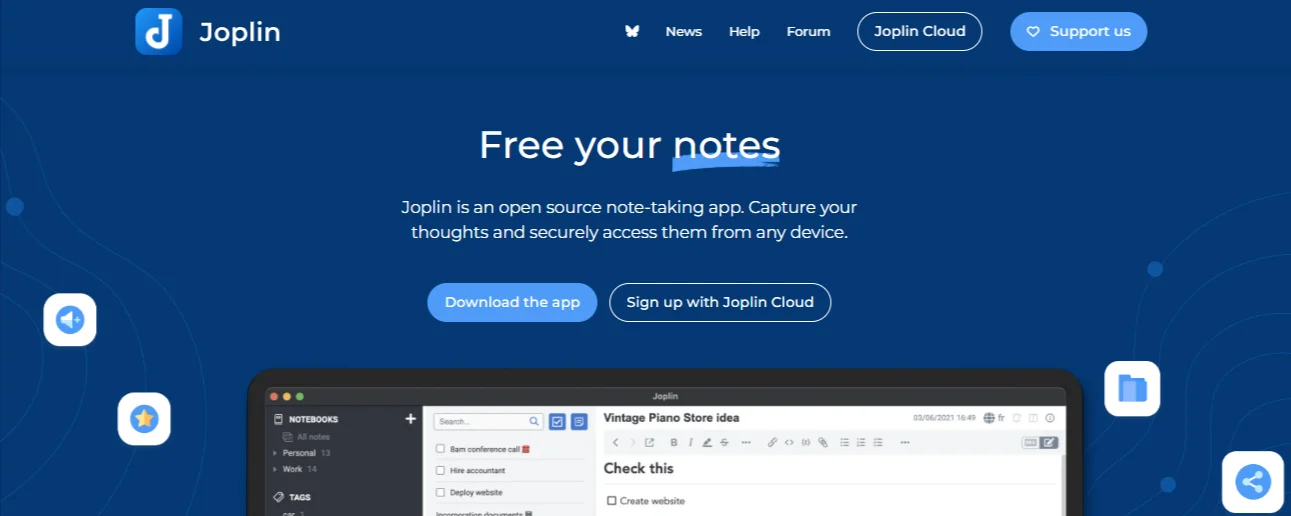
Joplin is a free, open-source note-taking app built around Markdown, which makes it a natural fit for writers who are already comfortable formatting text with plain syntax instead of a visual toolbar. Notes are organized into notebooks and tags, it works fully offline, and syncing to your own cloud storage (Dropbox, OneDrive, or a self-hosted option) is encrypted end to end, which is a meaningfully stronger privacy stance than most note apps on this list offer by default. Since it’s open-source, the entire feature set is free with no upgrade tier at all.
Key Features:
- Markdown support
- Notebook and tag organization
- Works offline
- Secure cloud sync
- Open-source and free
Stop 04 of 07
1 minBest App for Each Use Case
Different apps work better for different needs. Here’s a quick guide:
- Best for collaboration: Google Docs
- Best for grammar checking: Grammarly
- Best for editing style: Hemingway Editor
- Best for focused writing: FocusWriter
- Best for idea organization: Notion and Evernote
- Best for offline writing: LibreOffice Writer and Joplin
Stop 05 of 07
1 minTips for Making the Most of Writing Apps
Get more out of your writing tools by following these tips:
- Set clear goals like word count or time limits.
- Use folders or tags to keep your files easy to find.
- Check grammar after writing to keep the flow natural.
- Save backups regularly to avoid data loss.
Stop 06 of 07
1 minConclusion
Free writing apps help both designers and writers improve their work. You can write faster, stay organized, and avoid mistakes with the right tool. Try out the apps listed in this blog to see which one fits your style. A simple tool can save time and make writing a lot easier.
Stop 07 of 07
1 minFrequently Asked Questions
Are these writing apps really free, or do they have hidden costs?
Most are genuinely free with no catch, especially the open-source options like LibreOffice Writer, FocusWriter, and Joplin. A few, like Grammarly and Notion, have real free tiers but cap certain features (AI prompts, device syncing, team storage), so it’s worth checking those limits against how you plan to use the app before assuming everything is unlocked.
Which app is best if I need both writing and note organization in one place?
Notion and Evernote both combine writing with organization, but they lean differently. Notion works better if you want structured pages, databases, and project tracking alongside your writing. Evernote works better if your main need is capturing and searching through research, web clippings, and reference material.
Can I use more than one of these apps together?
Yes, and many writers do. A common combination is drafting in Google Docs for collaboration, running a pass through Hemingway Editor or Grammarly for clarity and grammar, and using Notion or Joplin separately to organize notes and ideas before drafting begins.
Do any of these apps work well for long-form content like blog posts or scripts?
Google Docs, LibreOffice Writer, and Notion all handle long-form writing well, with strong formatting support and no length restrictions on the free tier. FocusWriter is also a strong option specifically for the drafting stage of long-form work, since its distraction-free mode is built for sustained writing sessions.
Is Grammarly’s free plan enough, or do I need to upgrade to Pro?
For basic grammar and spelling correction, the free plan is enough for most casual or occasional writing. If your work depends on tone adjustment, full-sentence AI rewrites, or plagiarism checking, particularly for client-facing content, the Pro plan’s expanded AI prompt allowance and additional features are usually worth the cost.
From insight to action
Want results like these for your brand?
Talk to a consultant about your position, your message and your next step.
Talk to our team